What Does Autofill Mean
If you’ve never used autofill before let’s take a minute to go over just what it means. When you fill in a form it takes a lot of time, right? You have to fill in things like your name, address, phone number, email address and possibly more. Every time you want to purchase something from a company you have to fill in that information and that can get a little annoying, right? But you don’t have to with a Mac.
Your Mac actually has the ability to save the information that you put in. That means you only have to put the information in a single time. Then, the next time that you go to put your information into a form, the computer itself will actually fill in that information for you. It saves you a whole lot of time and effort, but there are some downsides to this as well. Let’s discover more in next part.
Conclusion
Autofill on Mac automatically fill out these information: online forms including address, credit card, password, etc, and log-in information including email address, password.
Why You Should Delete Autofill on Mac
Now, when you’ve heard about how much more convenient and time-saving it can be to use autofill why would you want to delete it? Well, the number one reason that you should learn how to remove autofill on Mac as quickly as possible is that it’s actually dangerous. When you have autofill you don’t have to fill in any information anymore. Your computer recognizes what your address is, what your date of birth is, even what your credit card number is. That means anyone with access to your computer has access to that information.
Now, it’s very difficult for someone to actually copy the information from your autofill and use it elsewhere. But it’s extremely easy for them to access your computer and use it to do whatever they want. They can use your computer to make a purchase (or several purchase). They can use it to apply for credit cards or loans. They can do anything that they want with that information and you’ll then have to deal with the ramifications that come around as a result. And you may not even realize what they’ve done for months or longer. Or you may not recognize the full extent of the damage until much later.
If that’s what you’re risking, however, what should you do to make sure you don’t have to worry? You should be removing your information from autofill, and that’s going to be a lot easier than you thought.
How Do I Delete Autofill on Mac in Every Browser Manually
Let’s take a look at the three most popular browsers and how to remove autofill on Mac manually. We’ll talk you through the process so if this is what you want to do, you can absolutely jump in and take care of your information.
Remove AutoFill in Safari
Safari is one of relatively popular browsers and we’ll take a look at the process here. It’s actually a little more in depth to get it done. A distant 10.54% of people choose Safari as their favorite browser. That puts this browser as the third out of the top three web browsers, only slightly ahead of Internet Explorer, which is the fourth most popular.
Open the Safari browser.
Select “Preferences” then “Autofill”.
Select “User Names and Passwords” and select ‘Edit’ then “Remove”.
Select “Credit Cards” and select “Edit” then “Remove”.
Select “Other Forms” and select “Edit” then “Remove”.
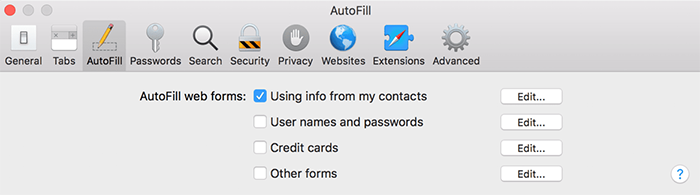
Tip: To turn off autofill in Safari on Mac, just turn to "Disable Autofill in Safari" part.
Remove AutoFill in Chrome
Chromeis one of the most popular browsers around and as a result you may need to know how to remove your autofill information from Chrome. Below are the simple steps to do that.
Open the Chrome browser.
Select “History” then “Full History”.
Select “Clear Browsing Data”.
Select “Passwords” and “Autofill Form Data”.
Select “Clear Browsing Data” again to confirm.

Tip: To turn off autofill in Chrome on Mac, just turn to "Disable Autofill in Chrome" part.
Remove AutoFill in Firefox
This is another of the most popular browsers out there thought and the process to remove autofill is actually relatively simple.
Open the Firefox browser.
Click “History” > “Show All History”.
Select “Everything” in the “Time Range to Clear” menu.
Choose “Form & Search History”.
Click “Clear Now”.

Tip: To turn off autofill in Firefox on Mac, just turn to "Disable Autofill in Firefox" part.
Now, if you’re looking at how to remove autofill on Mac this way you’re going to spend a lot of time at it. Going through each browser, one at a time, and deleting all of your information is going to require a little bit of a learning curve too. After all, you have a different process for each of the most popular browsers. But what if you could do it more easily? What if there was a type of Mac cleaning software that could scrub your information from every browser with just the click of a button? You’re in luck, because it absolutely exists. You just need to take a look at the app we are going to talk about next.
Also Read:deepnude alternatives
Also Read:4K Video Downloader

Hiç yorum yok:
Yorum Gönder